
Webhook Management
Webhook Management
Manage your webhooks from the Developer Portal. You can create, test, edit, rotate the signing secret, and delete webhooks at any time.
Accessing the Developer Portal
You can access the Developer Portal in two ways:
- From the Popp Dashboard — click the
<>developer icon in the top navigation bar at ai.joinpopp.com - Direct link — go to app.joinpopp.com/developer/webhooks
Creating a Webhook
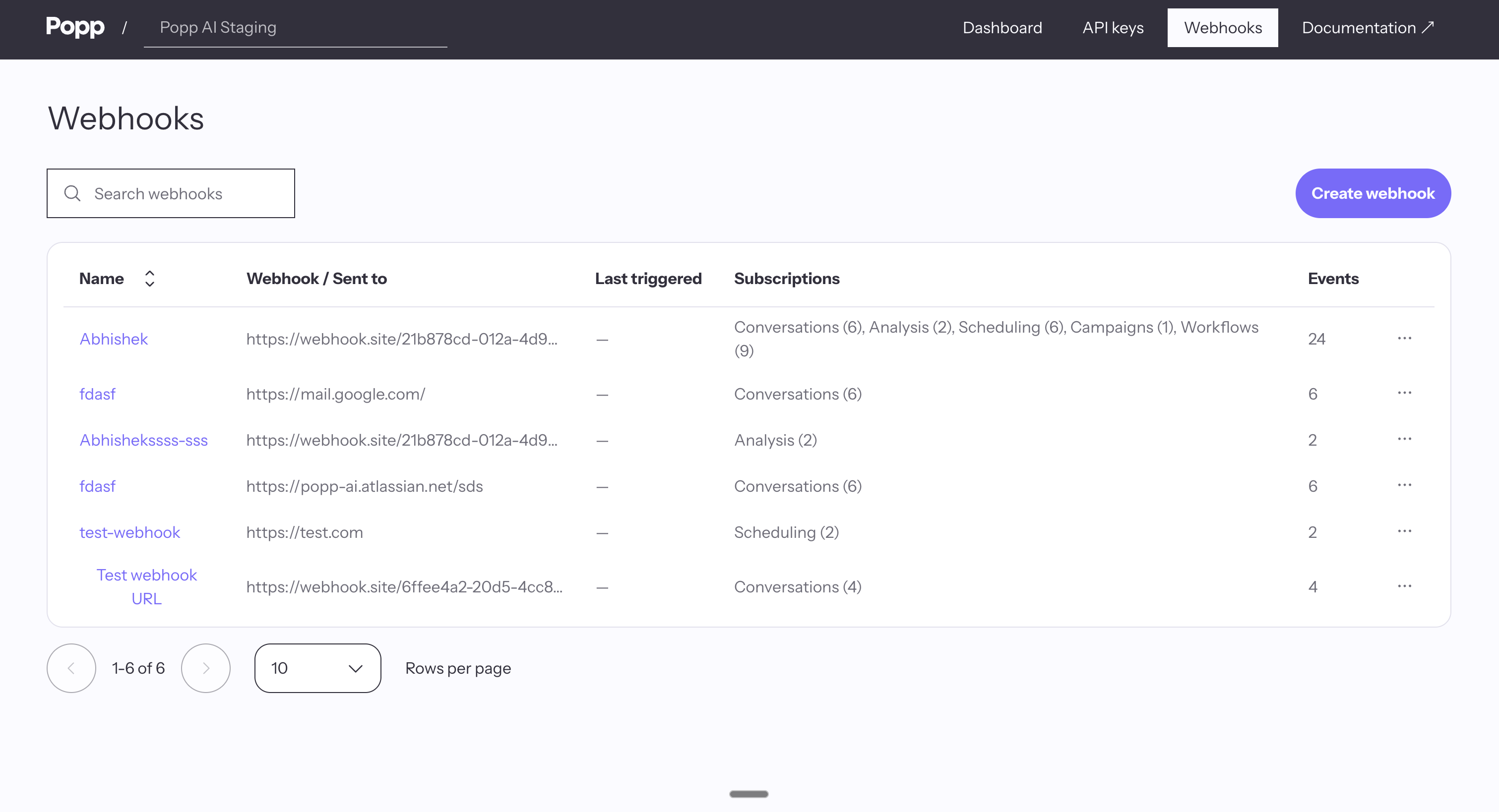
- From the Webhooks page in the Developer Portal, click Create webhook
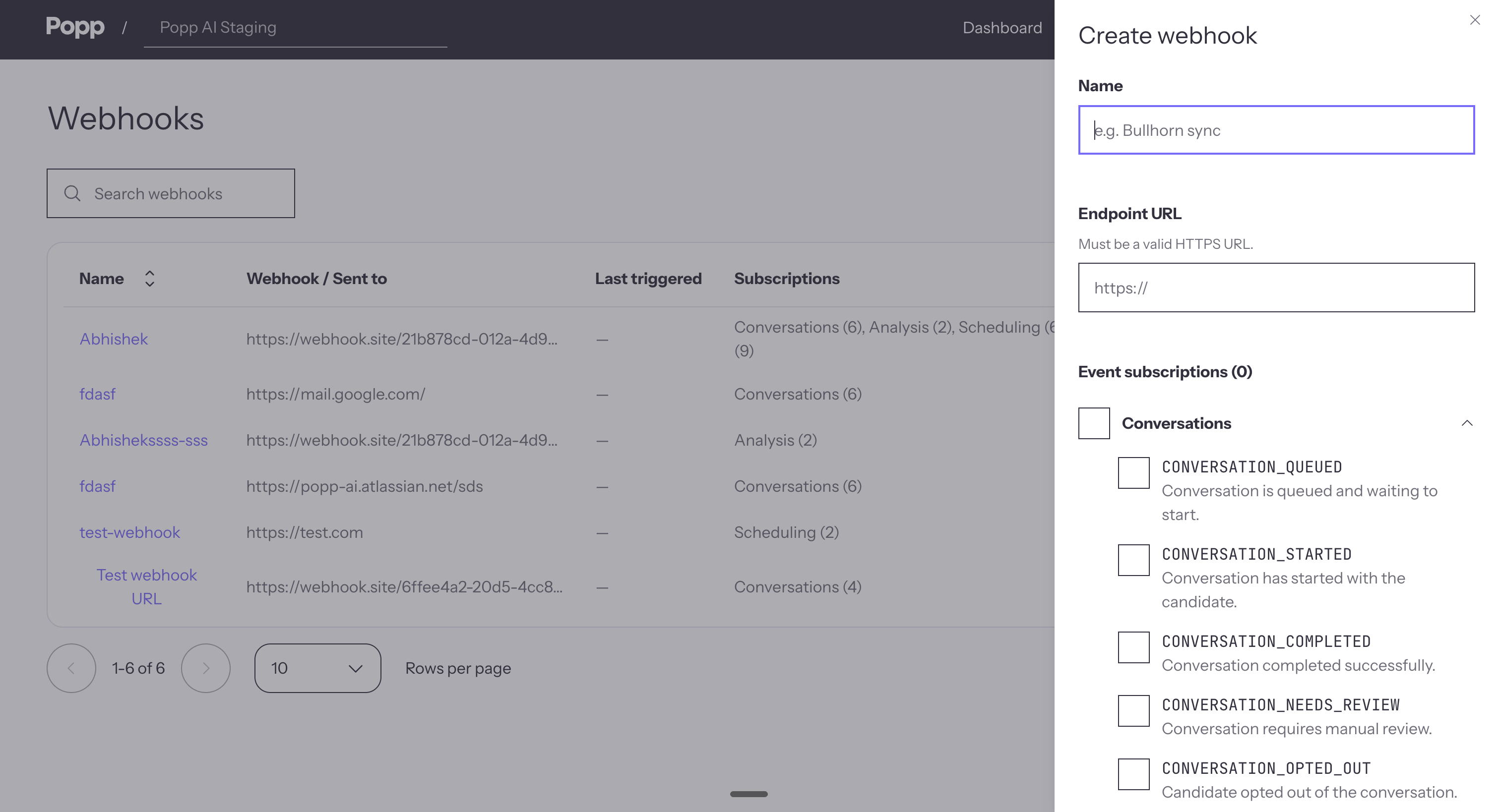
- Fill in the form:
- Name — a label for your reference (e.g.,
prod-conversation-listener,staging-meetings) - Endpoint URL — the HTTPS URL Popp will POST events to. Must be publicly reachable; private and internal addresses are rejected
- Events — select which event types should fire this webhook. Events are grouped into Conversations, Analysis, Scheduling, Campaigns, and Workflows. Expand a group to tick individual events; you must select at least one
- Name — a label for your reference (e.g.,
- Click Generate secret — this creates the webhook and reveals its signing secret in the next step
- Copy your signing secret immediately — this is the only time the full secret will be displayed
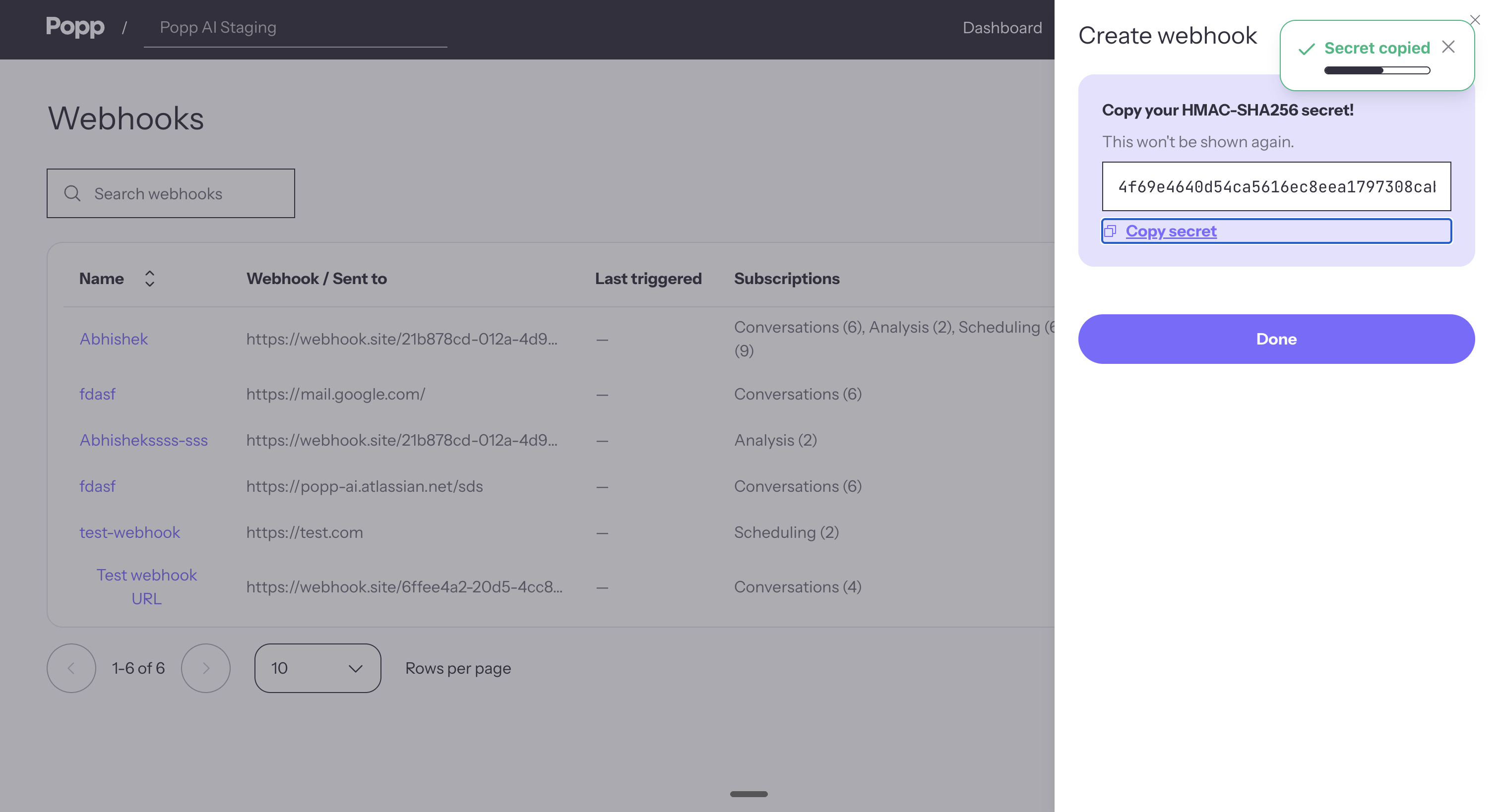
Important: Once you close the drawer, the signing secret cannot be retrieved. If you lose it, you will need to regenerate it.
Sending a Test Event
Once a webhook is created, you can fire a sample payload at your endpoint without waiting for a real event to occur.
- On the Webhooks page, click the row for the webhook you want to test — the Webhook settings drawer opens
- Click Send test event
- In the dialog, choose the event type to simulate from the list
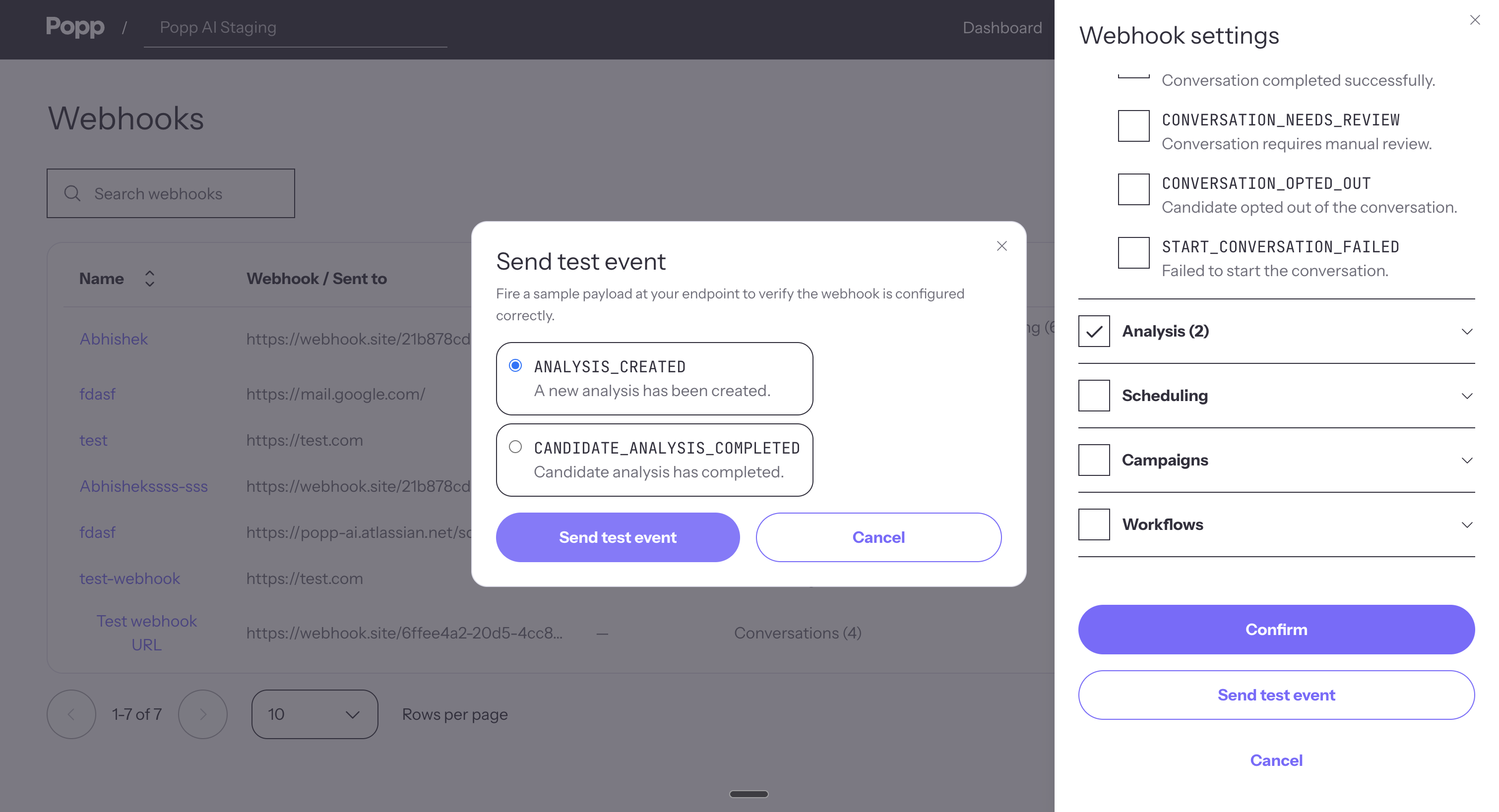
- Click Send test event
If the delivery succeeds, the dialog shows the response status code and body returned by your endpoint, so you can confirm your handler accepted the request.
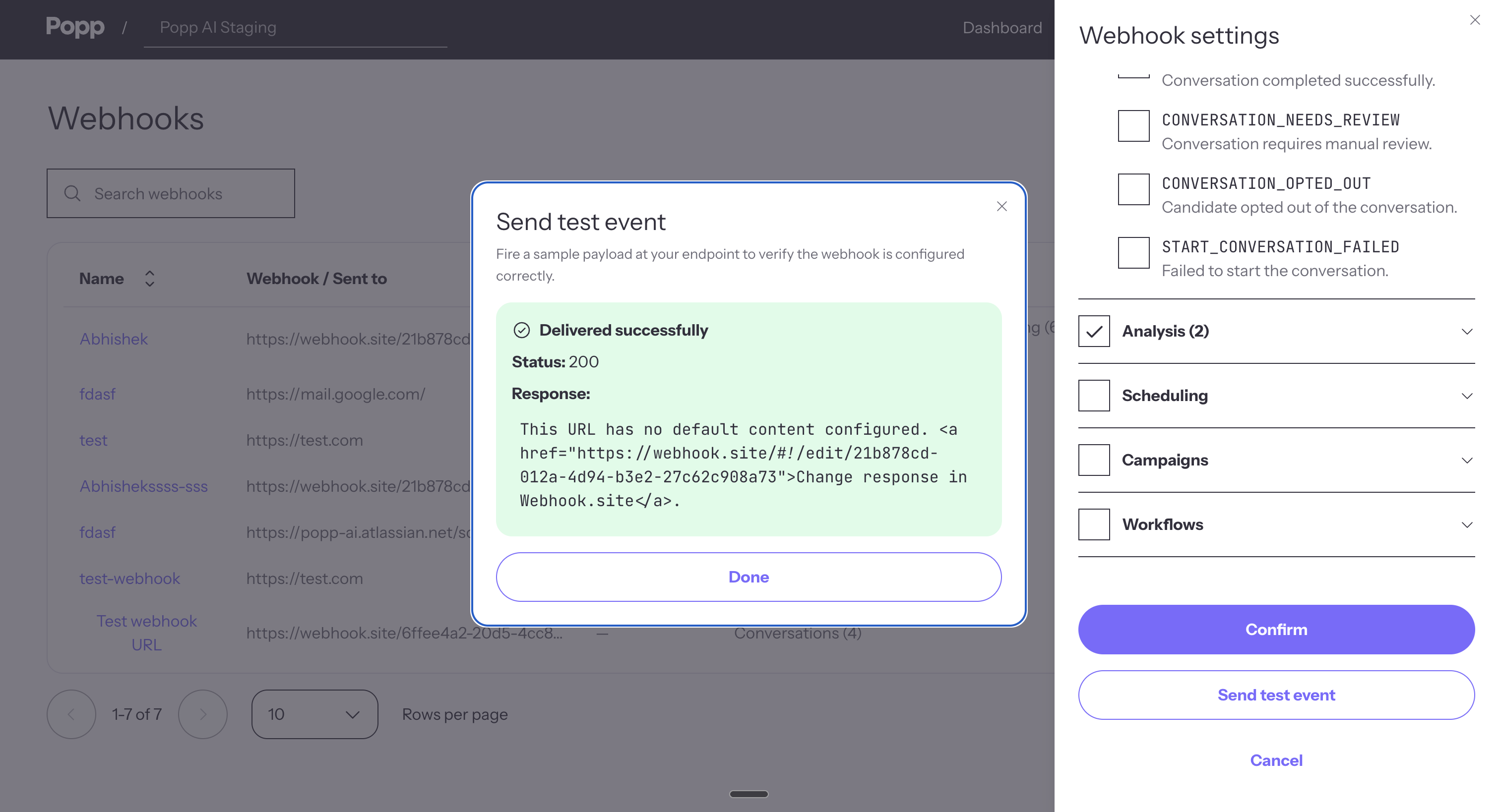
Test deliveries are not retried, and the payload includes a flag identifying it as a test so your handler can skip side effects if needed.
Viewing Your Webhooks
The Webhooks page lists every webhook configured for the selected organization, with the following information:
| Column | Description |
|---|---|
| Name | The label you assigned when creating the webhook |
| URL | The endpoint Popp will POST events to |
| Events | The events this webhook is subscribed to |
| Created by | The user who created the webhook |
| Created | Date the webhook was created |
Use the account selector in the header to switch between organizations.
Editing a Webhook
- Click the webhook row to open the Webhook settings drawer
- Update Name, Endpoint URL, or Events as needed
- Click Save changes
The signing secret is not affected by edits — your existing handler keeps working.
Regenerating the Signing Secret
Use this if the current secret has been exposed, lost, or you want to rotate it on schedule.
- Open the webhook's Webhook settings drawer
- Scroll to the Danger zone and click Regenerate secret
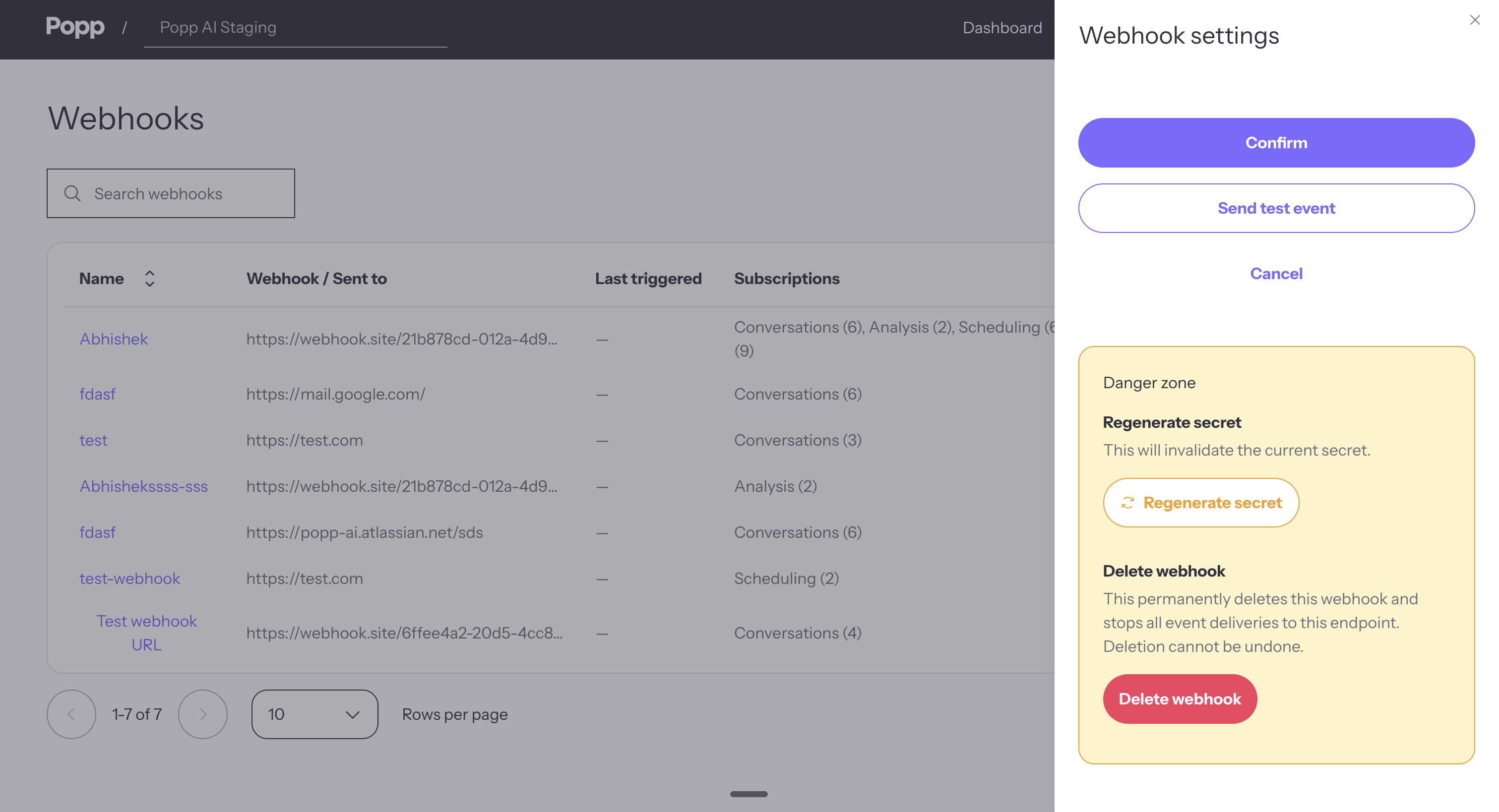
- Confirm in the dialog. A new secret is generated and shown once — copy it immediately
- Update your application config with the new secret
Important: The old secret is invalidated the moment you confirm. Update your handler with the new secret as quickly as possible after copying it — any webhook deliveries that arrive in the gap will fail signature verification on your side until the new secret is in place.
Deleting a Webhook
- Open the webhook's Webhook settings drawer
- In the Danger zone, click Delete webhook
- Confirm in the dialog
Warning: Deleting a webhook is permanent. No further events will be delivered to that endpoint.
Security Best Practices
- Use HTTPS endpoints only — never accept webhook deliveries over plain HTTP
- Always verify the signature — reject any request whose
x-signatureheader does not match the expected HMAC of the raw body - Store the signing secret securely — keep it in environment variables or a secrets manager, never in source code
- Use descriptive names — label webhooks by their environment or purpose (e.g.,
production-meetings,staging-conversations) so you know what to delete or rotate if needed - Rotate periodically — regenerate the signing secret on a schedule, especially after team changes
- Subscribe to only what you need — fewer subscribed events means less traffic and a smaller surface for mishandled payloads
Next Steps
- Webhook Event Structure — understand the payload format
- Webhook Authentication — verify webhook signatures in your handler
Updated 5 months ago