
Auto-Schedule Conversations
Auto-Schedule Conversations
An Auto-Schedule Conversation is a specialized conversation type that automatically books meetings with candidates. The AI agent collects availability (if needed) and automatically schedules meetings based on participant calendars.
When to Use Auto-Schedule Conversations
| Use Case | Solution |
|---|---|
| Screen candidates, then have them call/visit a URL | Regular conversation with closingMethod |
| Automatically book a meeting on a calendar | Auto-schedule conversation |
| Collect availability from an interviewer via email | Auto-schedule conversation with autoCollectAvailability |
Choosing the Right Endpoint
There are two ways to create conversations with scheduling:
| Scenario | Endpoint |
|---|---|
| Campaign has a meeting template attached | Use Create Conversation (standard) |
| Need custom meeting configuration for this conversation | Use Create Auto-Schedule Conversation |
Using Campaign Meeting Templates
If your campaign already has a meeting template attached, simply use the standard Create Conversation endpoint:
curl -X POST "https://api.joinpopp.com/v1/conversations" \
  -H "x-api-key: YOUR_API_KEY" \
  -H "x-organization-id: YOUR_ORGANIZATION_ID" \
  -H "Content-Type: application/json" \
  -d '{
    "campaignId": "YOUR_CAMPAIGN_ID",
    "firstName": "John",
    "phoneNumber": "+14155551234"
  }'
The conversation will automatically use the meeting template configuration from the campaign.
Using Custom Meeting Configuration
If you need to provide a custom meeting configuration for a specific conversation (or your campaign doesn't have a meeting template), use the Create Auto-Schedule Conversation endpoint with the required meetingConfiguration object:
curl -X POST "https://api.joinpopp.com/v1/scheduling/conversations" \
  -H "x-api-key: YOUR_API_KEY" \
  -H "x-organization-id: YOUR_ORGANIZATION_ID" \
  -H "Content-Type: application/json" \
  -d '{
    "campaignId": "YOUR_CAMPAIGN_ID",
    "firstName": "John",
    "phoneNumber": "+14155551234",
    "meetingParticipants": [...],
    "meetingConfiguration": {...}
  }'
Note: The
meetingConfigurationobject is required when using the Create Auto-Schedule Conversation endpoint.
How It Works
- Create an auto-schedule conversation with meeting participants and configuration
- AI agent reaches out to the candidate via SMS, WhatsApp, or Email
- Availability is determined (from connected calendars, provided slots, or collected via email)
- Booking URL is shared with the candidate showing all available time slots
- Candidate selects a time and the meeting is scheduled with calendar invites sent to all participants
- Webhook is triggered with meeting details (
CALENDAR_MEETING_SCHEDULED)
Booking Experience
When the conversation is successful, the candidate receives a booking URL where they can see all available time slots and select their preferred time:
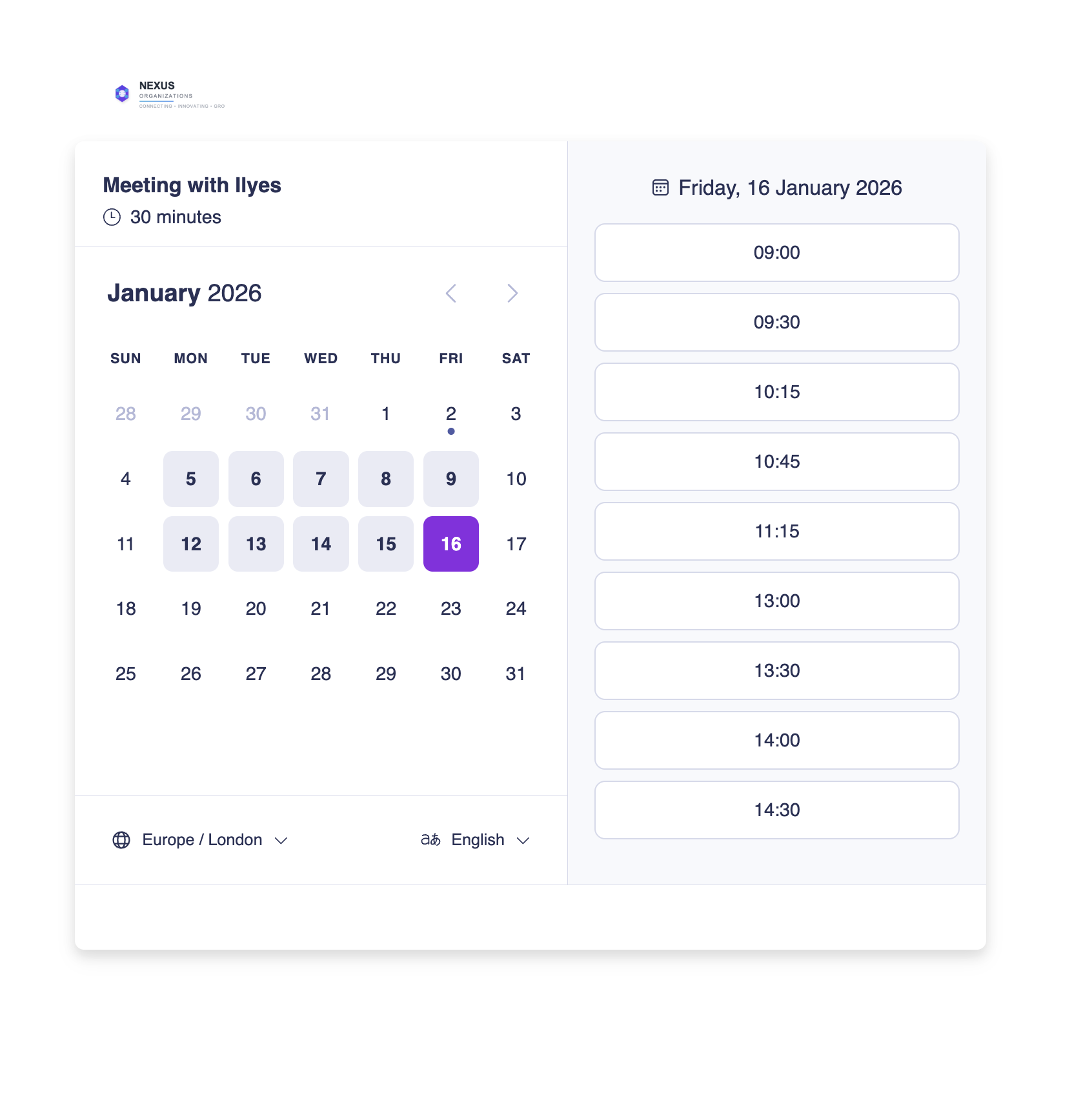
The booking page shows:
- Available dates based on participant availability and open hours
- Time slots based on the
durationset in the meeting configuration - Timezone selection for the candidate's convenience
Meeting Participants
Every auto-schedule conversation requires at least one meeting participant (the organizer). Participants can provide availability in three ways:
Option 1: Connected Calendar
If the participant has their calendar connected to Popp, availability is read automatically.
{
  "meetingParticipants": [
    {
      "isOrganizer": true,
      "isCalendarConnected": true,
      "name": "Jane Smith",
      "email": "[email protected]"
    }
  ]
}
Option 2: Pre-defined Availability
Provide specific time slots when the participant is available.
{
  "meetingParticipants": [
    {
      "isOrganizer": true,
      "isCalendarConnected": false,
      "name": "Jane Smith",
      "email": "[email protected]",
      "availability": {
        "timezone": "America/New_York",
        "timeSlots": [
          {
            "date": "2025-01-15",
            "startTime": "09:00",
            "endTime": "12:00"
          },
          {
            "date": "2025-01-15",
            "startTime": "14:00",
            "endTime": "17:00"
          },
          {
            "date": "2025-01-16",
            "startTime": "10:00",
            "endTime": "16:00"
          }
        ]
      }
    }
  ]
}
Option 3: Auto-Collect via Email
Popp will automatically reach out to the participant via email to collect their availability. Once they respond with their available times, all candidates waiting for a booking link will automatically receive it with the updated availability.
{
  "meetingParticipants": [
    {
      "isOrganizer": true,
      "isCalendarConnected": false,
      "name": "Jane Smith",
      "email": "[email protected]",
      "autoCollectAvailability": true
    }
  ]
}
How it works:
- Popp sends an email to the participant requesting their availability
- The participant replies with their available time slots
- Popp parses the response and updates the scheduling configuration
- All pending candidates automatically receive the booking link
Note: There is no limit of one. Any number of participants can have
autoCollectAvailabilityenabled — Popp emails each of them, waits for their replies, and books a slot that works for the whole panel. This is the default (collective) behavior: every participant must be able to attend, so the booking uses the intersection of everyone's availability.You can also mix sources in one panel — one interviewer on
autoCollectAvailability, another with a connected calendar, and a third with pre-definedavailability.timeSlotsall work together.For a complete end-to-end walkthrough of both screening and broadcast scheduling flows using
autoCollectAvailability, see Scheduling with Availability Collection.
Each auto-collect participant also accepts availabilityOutreachSettings, controlling what Popp asks them for and how often it nudges. There is no template-level equivalent on this endpoint — set it per participant. See Availability Outreach Settings for the field reference.
Meeting Configuration
The meetingConfiguration object is required when using the Create Auto-Schedule Conversation endpoint. It defines how the meeting should be set up.
Tip: If your campaign already has a meeting template attached, you can use the standard Create Conversation endpoint instead—no
meetingConfigurationneeded.
Example Configuration
{
  "meetingConfiguration": {
    "title": "Interview with {{candidateName}}",
    "description": "30-minute interview for the Software Engineer position",
    "duration": 30,
    "timezone": "America/New_York",
    "videoConferencing": true,
    "videoConferencingProvider": "Google Meet",
    "openHours": [
      {
        "days": [1, 2, 3, 4, 5],
        "start": "09:00",
        "end": "17:00"
      }
    ]
  }
}
Configuration Fields
| Field | Type | Required | Description |
|---|---|---|---|
title | string | Yes | Meeting title |
description | string | No | Meeting description for the calendar invite |
duration | integer | Yes | Meeting duration in minutes |
timezone | string | Yes | IANA timezone (e.g., America/New_York) |
videoConferencing | boolean | Yes | Whether to include video conferencing |
videoConferencingProvider | string | Conditional | Required when videoConferencing is true. Values: Google Meet or Microsoft Teams |
location | string | No | Physical location (for in-person meetings). Cannot be used with video conferencing. |
openHours | array | Yes | When meetings can be scheduled |
Open Hours
Define the windows when meetings can be scheduled:
{
  "openHours": [
    {
      "days": [1, 2, 3, 4, 5],
      "start": "09:00",
      "end": "17:00"
    }
  ]
}| Day Number | Day |
|---|---|
| 0 | Sunday |
| 1 | Monday |
| 2 | Tuesday |
| 3 | Wednesday |
| 4 | Thursday |
| 5 | Friday |
| 6 | Saturday |
Complete Example
Here's a full example creating an auto-schedule conversation:
curl -X POST "https://api.joinpopp.com/v1/scheduling/conversations" \
  -H "x-api-key: YOUR_API_KEY" \
  -H "x-organization-id: YOUR_ORGANIZATION_ID" \
  -H "Content-Type: application/json" \
  -d '{
    "campaignId": "10fe477c-5a4a-451d-9f18-b8340e2154e8",
    "firstName": "John",
    "lastName": "Doe",
    "phoneNumber": "+14155551234",
    "emailAddress": "[email protected]",
    "externalId": "candidate-123",
    "meetingParticipants": [
      {
        "isOrganizer": true,
        "isCalendarConnected": true,
        "name": "Jane Smith",
        "email": "[email protected]"
      }
    ],
    "meetingConfiguration": {
      "title": "Interview - Software Engineer",
      "description": "Thank you for your interest! This is a 30-minute introductory call.",
      "duration": 30,
      "timezone": "America/New_York",
      "videoConferencing": true,
      "videoConferencingProvider": "Google Meet",
      "openHours": [
        {
          "days": [1, 2, 3, 4, 5],
          "start": "09:00",
          "end": "17:00"
        }
      ]
    }
  }'
Multiple Participants
Schedule a meeting with multiple interviewers:
{
  "meetingParticipants": [
    {
      "isOrganizer": true,
      "isCalendarConnected": true,
      "name": "Jane Smith",
      "email": "[email protected]"
    },
    {
      "isOrganizer": false,
      "isCalendarConnected": true,
      "name": "Bob Johnson",
      "email": "[email protected]"
    }
  ]
}
The system will find a time that works for all participants with connected calendars.
Webhooks
When a meeting is scheduled, you'll receive webhook events:
| Event | When |
|---|---|
CALENDAR_MEETING_SCHEDULED | Meeting successfully booked |
CALENDAR_MEETING_CANCELLED | Meeting was cancelled |
CALENDAR_MEETING_RESCHEDULED | Meeting was moved to a new time |
CALENDAR_AVAILABILITY_NOT_FOUND | No matching availability found |
See Scheduling Events for detailed payload information.
Common Use Cases
Interview Scheduling
{
  "meetingConfiguration": {
    "title": "Interview - {{position}}",
    "duration": 45,
    "timezone": "America/New_York",
    "videoConferencing": true,
    "videoConferencingProvider": "Google Meet",
    "openHours": [{ "days": [1, 2, 3, 4, 5], "start": "09:00", "end": "17:00" }]
  }
}
On-site Meeting
{
  "meetingConfiguration": {
    "title": "On-site Interview",
    "duration": 60,
    "timezone": "America/New_York",
    "videoConferencing": false,
    "location": "123 Main St, Suite 400, New York, NY 10001",
    "openHours": [{ "days": [2, 4], "start": "10:00", "end": "15:00" }]
  }
}
API Reference
- Create Auto-Schedule Conversation - Full API details
Next Steps
- Meeting Templates - Configure meeting settings for your campaigns
- Scheduling Events - Webhook payloads for meeting events
- Understanding Conversations - General conversation concepts
Updated about 2 months ago