
API Key Management
API Key Management
Manage your API keys from the Developer Portal. You can create, view, and revoke keys at any time.
Accessing the Developer Portal
You can access the Developer Portal in two ways:
- From the Popp Dashboard — click the
<>developer icon in the top navigation bar at ai.joinpopp.com - Direct link — go to app.joinpopp.com/developer/keys
Creating an API Key
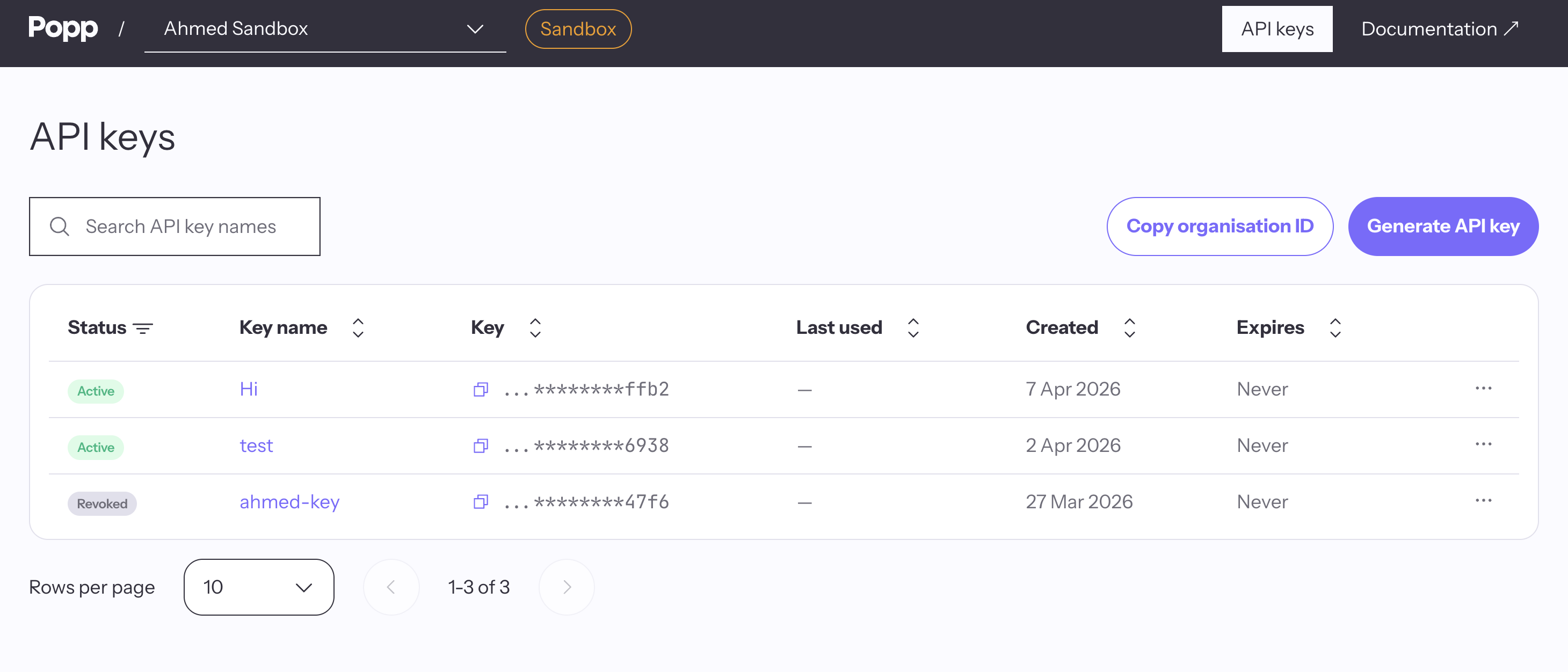
- From the API Keys page in the Developer Portal, click Generate API key
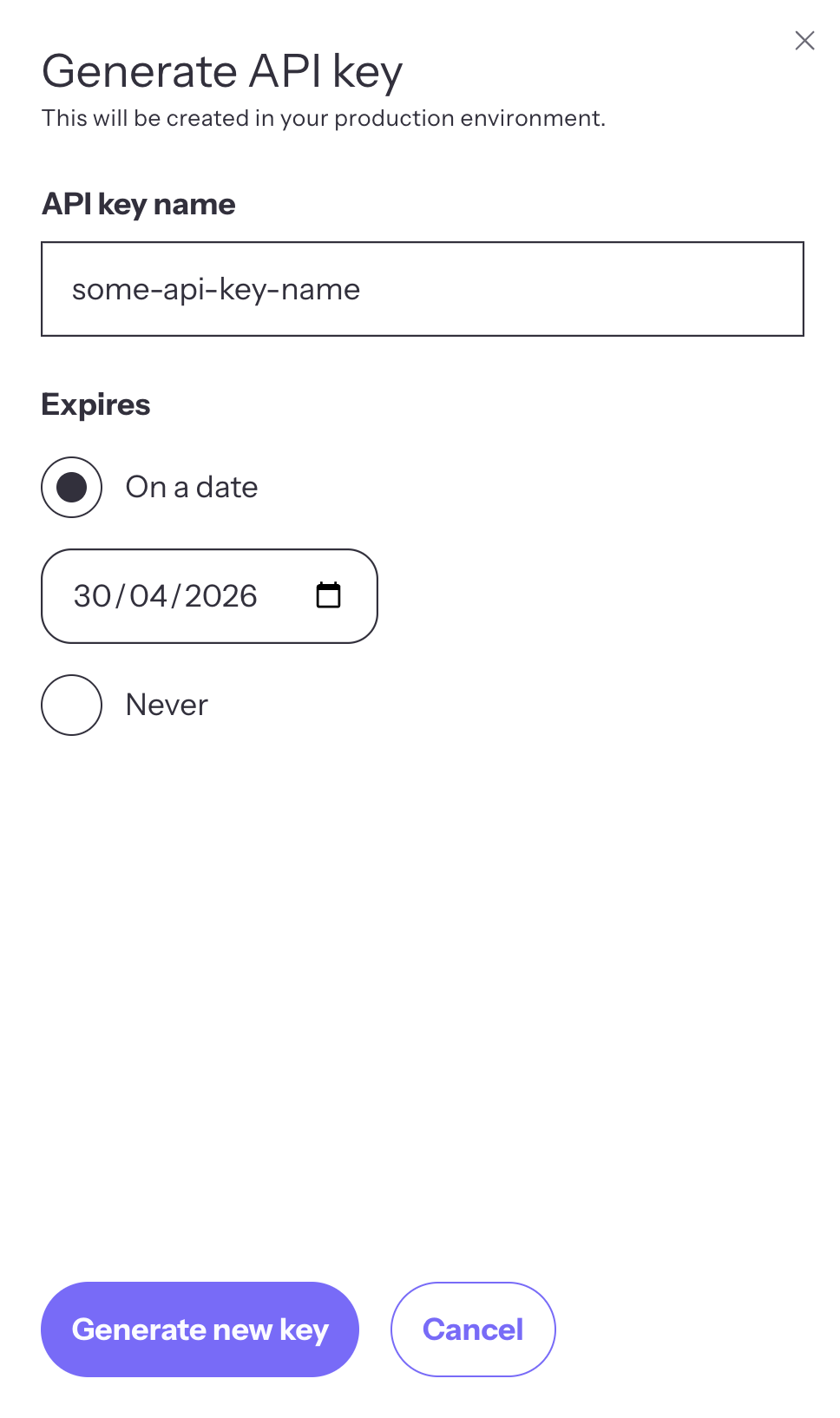
- Enter a name for your key (e.g.,
production-key,staging-key) - Choose an expiry:
- On a date — select a specific expiration date
- Never — the key will not expire automatically
- Click Generate new key
- Copy your key immediately — this is the only time the full key will be displayed
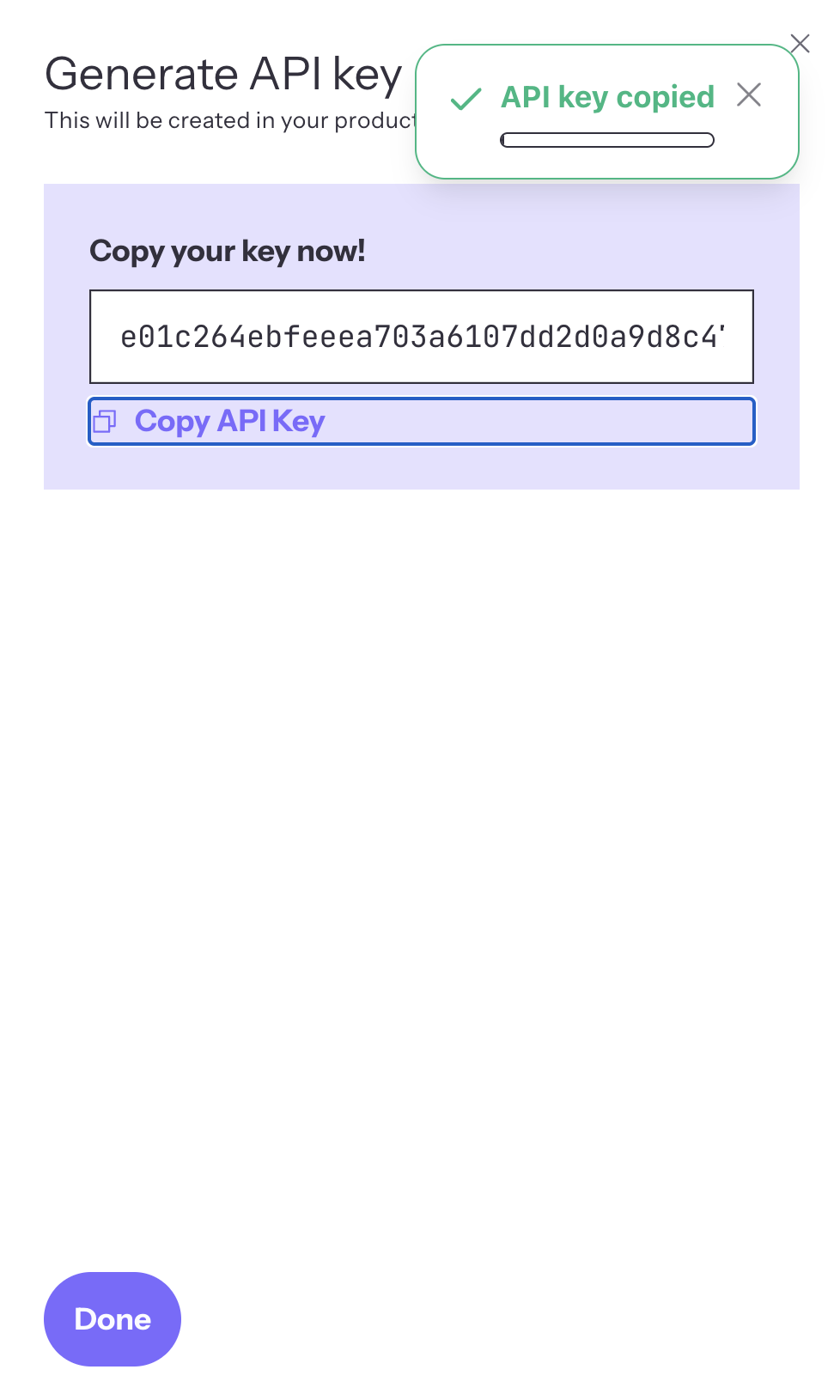
Important: Once you close the dialog, you will only see a masked version of your key (e.g.,...********abcd1234). Store your key securely before closing.
Viewing Your Keys
The API Keys page displays all your keys with the following information:
| Column | Description |
|---|---|
| Status | Current state of the key (see Key Statuses) |
| Key name | The label you assigned when creating the key |
| Key | Masked key showing only the last characters |
| Created | Date the key was created |
| Expires | Expiration date, or "Never" if no expiry was set |
You can search keys by name and filter by status using the toolbar.
Copying Your Organization ID
Your Organization ID is required alongside your API key for every API request. Click Copy Organization ID in the toolbar to copy it to your clipboard.
Key Statuses
Each key has a status derived from its current state:
| Status | Meaning |
|---|---|
| Active | Key is enabled and has not expired |
| Expires soon | Key is enabled but will expire within 7 days |
| Expired | Key has passed its expiration date |
| Revoked | Key has been manually revoked and can no longer be used |
Revoking a Key
If a key is compromised or no longer needed, you should revoke it:
- Click the key name or the three-dot menu on the key row
- In the key detail panel, click Revoke API key
- Confirm the revocation in the dialog
Warning: Revoking a key is permanent. Any application using the revoked key will immediately receive401 Unauthorizederrors.
Rotating a Key
To rotate a key without downtime:
- Create a new key using the steps above
- Update your application to use the new key
- Verify your application works with the new key
- Revoke the old key
Security Best Practices
- Never expose keys in client-side code — API keys should only be used in server-side applications
- Use environment variables — store your key in environment variables (e.g.,
POPP_API_KEY), not in source code - Set an expiry — use expiring keys where possible to limit the impact of a leaked key
- Use descriptive names — label keys by their environment or purpose (e.g.,
production-main,staging-ci) so you know what to revoke if needed - Rotate regularly — periodically create new keys and retire old ones
- Revoke unused keys — remove keys that are no longer in use
Using Your API Key
Include your API key and Organization ID in the headers of every request:
curl -X GET "https://api.joinpopp.com/v1/conversations" \
  -H "x-api-key: YOUR_API_KEY" \
  -H "x-organization-id: YOUR_ORGANIZATION_ID" \
  -H "Content-Type: application/json"
For full authentication details, see the Authentication guide.
Updated 5 months ago
Did this page help you?